Organisation Method

This week, my boyfriend had gone to therapy and had come back with information he felt I could find useful too. In these sessions, they discuss ways in which you could overcome stress, and in this weeks, they were talking about ways in which you could plan out your day/week/month more efficiently, in order to help become more organised, which would hopefully result in less stress. As I had struggled a lot through semester one with my timekeeping and organisation, my boyfriend felt that what he had learnt could be very helpful for me within the second semester.

He had been taught a method which I believe was mentioned in a book called Eat that Frog and is called the ABCDE model. With this, you write out a list of everything you need to do, again, this could be over the space of a day, week, month or even a year, but once you have your list, you then start to categorise each of the tasks according to which is more of a priority.

A is a task of highest priority, one that you need to do or will risk big consequences. If there are multiple tasks which fall into this category, you then label them A1, A2, A3 and so on. Within the method, these tasks are known as the frogs.

B is a task which you should complete, but the consequences are slightly milder than with A tasks. These are referred to as the tadpoles because although they are lesser than the frogs if you leave them too long, they will turn into frogs.

C tasks are ones that are nice to do but don’t necessarily have any consequences to them. I see this as being a task that I would prefer to be doing as opposed to A and B’s, but should not as they are not on the top of my list of priorities.

D tasks are ones that you can delegate to someone else. This one may work better in terms of life tasks, as opposed to work tasks as I do mainly work by myself, so don’t imagine being able to delegate my work to anyone else.

And finally, E tasks are ones which can essentially be eliminated from the list and no difference would be made. According to the method, this could relate to a task you wanted to achieve at a specific time, but you feel it is no longer an issue.

The method does go on to discuss rules, but these fall along the lines of only working on the tasks in order, for instance not working on a B task before an A, or a C task before a B. It also mentions that self-discipline is the key to following the method, making sure that you are seeing all of the tasks through to the end, in exact order from A all the way to C.

I do like the sound of this method and do plan to use it throughout the second semester, as I feel it could potentially help me a lot, keeping me organised and hopefully less stressed, as I will have a better visualisation of my priorities and things I have to achieve. I will try creating a list for the day, a list for the week, and a list for the overall project. By creating one for the whole project I feel it would be more brief, but when getting to the day to day tasks, they will be more direct and specific as to what I need/want to achieve on that said day.


Bibliography 

Tracy, B. (2001). Eat that frog!. The ABCDE Model.
 

8 Tools I Use For Inktober

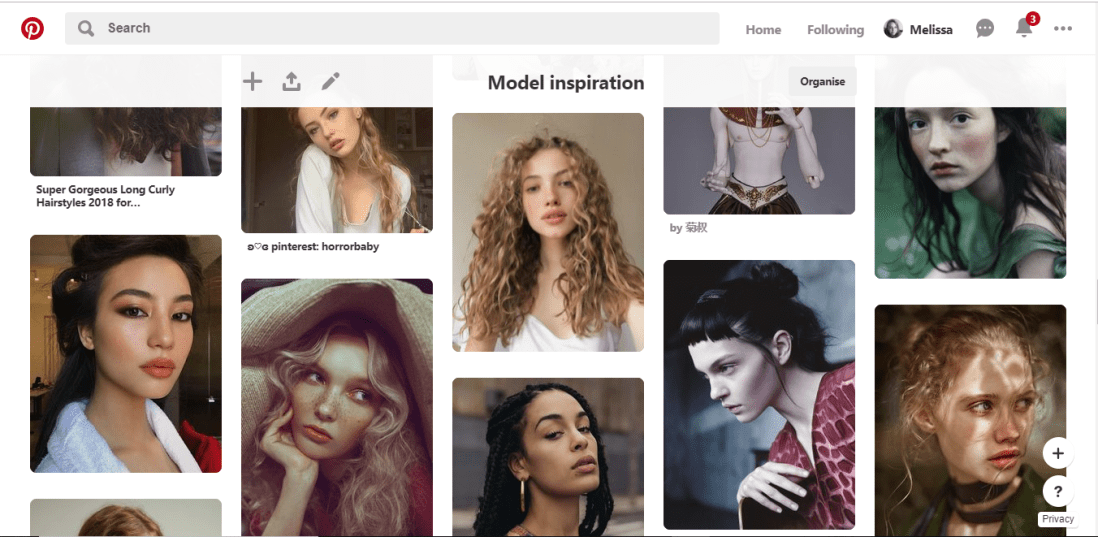
1.Pinterest

Pinterest has been my main source of inspiration throughout this project so far and during many previous projects. Over time I have built a collection of ‘Model Inspiration’ which include photos of different faces shapes, hairstyles different ethnicities and so on. I constantly refer to this board for inspiration, and if you were to look in it, you would most likely see the faces I have used as inspiration/reference during this challenge.

pinterest


2.Sketchbook

Throughout the challenge, I have been sketching each design out within my sketchbook, this allows me to make any changes necessary before I start inking the design.


3.A4 Light Pad

Once I am happy with the sketch, I rip out a page from the back of the book to create the inked design on, (yes my sketchbook is probably going to be very thin by the end of the challenge), then using an A4 light tray, which I had purchased from Amazon, and plugs into your computer or laptop with a USB, I start lining the sketch.


4.Derwent pens

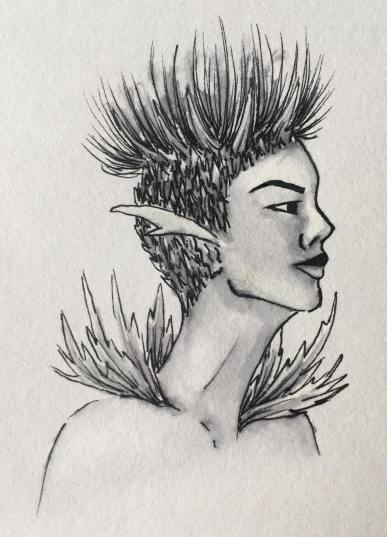
For the inking process, I use Derwent Graphik Line Maker Drawing Pens, which are a pack of 6, varying from 0.05mm, to 0.8mm. I often use 0.1mm for the facial features, 0.2 for face or petal outlines, 0.05 for very fine details, sometimes even cross-hatched shading, and for flat black areas, I use 0.3 or 0.8.


5.Water + Paint brush

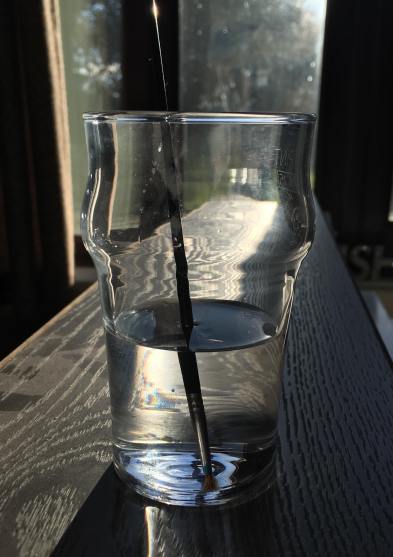
To add more shading with a softer blend, to the linework, I dip a thin paintbrush into a glass of water and bleed, drag and blend out some of the inked line work. If I feel it is bleeding too much or is too wet, I have often blotted it down with my sleeve or a piece of tissue.

44972115_2279412198755543_3778573181749559296_n


6.White pen

In some area, possibly where I have lost any highlights or the ink may have bled too much, once the piece is dry, I use a white ink pen and start adding back in the highlights or cleaning up some of the areas that may have come out too dark. If the white pen has gone slightly over some of the linework, I then just go back over with one of the fine liners.

45179285_292486278141594_8399343043123085312_n


7.Phone camera

Once the piece is complete, I take the design to a place which has good natural lighting, then take a picture of the piece using my iPhone camera. I do feel the lighting is an important factor, as you want to take the best photo you can of your design, and if taken too late on in the day, it can make your piece look more cool toned, or if you are using the lights within your house, I don’t know about yours, but mine are very orange/yellow, so would make my designs look too warm toned.


8.Whitagram for editing

With the photo, I then crop the design, making the illustration the only part visible, removing any background or any white, unused space from the page. I then take the photo into an app called Whitagram, which I originally solely used as to make my images square, for the way in which Instagram is set out, but for this project, I have also been using the editing tools within the app, playing with the lighting, exposure and shadows, as to make my pieces as white as possible.

This step would be much easier if I had scanned in the designs and edited them within Photoshop instead, however, I do not have a scanner at home, and as this was a daily challenge, I would not have been able to take advantage of the colleges each day of the week. So for the time being, I just have to make do with the resources I do have.

When it comes to creating my zine, however, I will be doing this step properly, by scanning in all of my designs and editing them with photoshop. I believe it will give me better results especially with quality, which I feel is very important for the product I will be producing, as I do want any potential buyers of the zine, to get their money worth.

Foiling

Following yesterdays class and blog post about screen printing, in the class, we had also learned how to foil your designs using that method, but I wanted to make a separate post about it as I have also used another technique for foiling in the past and wanted to discuss and compare the two methods.

Screen Printing

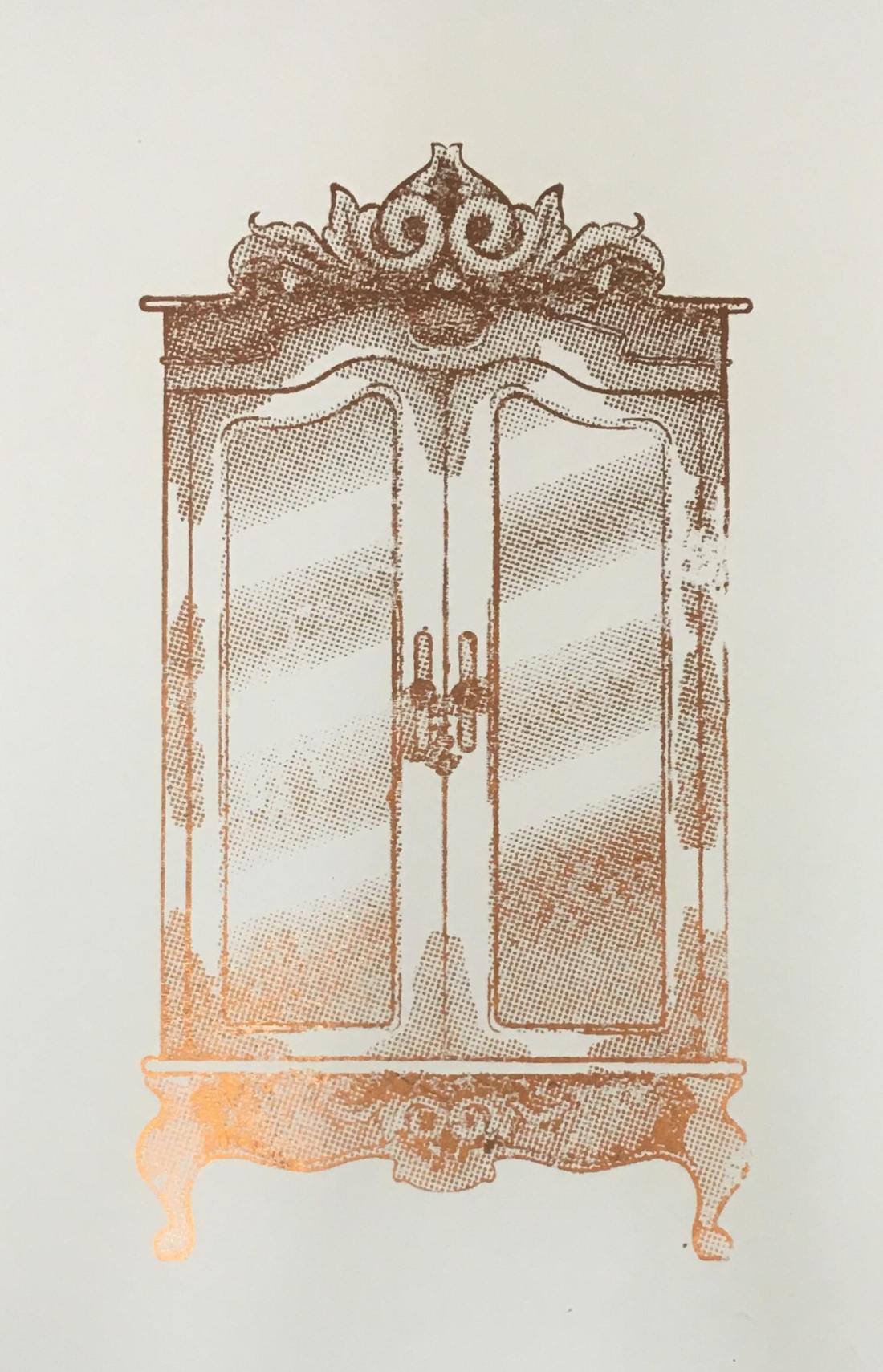
In yesterday’s blog post I did discuss the process of creating the screen and printing with it, so if this is something you are interested in or would like to know more about, please click here. So, following this process, instead of using printing medium, we used glue instead. By doing this, you did have to be more thorough with the cleaning of your screen, washing it as soon as possible because if you were to leave it to long, it could potentially dry and clog up your screen, making it unusable. Once the glue was printed onto the page, you would then choose a foil, which had come in multiple colours and tones, but for my piece, I had chosen to use a copperish colour. You would then place a sheet of your chosen foil over the glued sections, the colour/reflective side facing upwards, then sandwhiching the page and foil inbetween sheets of scrap paper, you then put it into the heat press for 30-60 seconds. Once you have removed this sandwich from the heatpress, wait for it to cool down slightly, then when you peel away the foil, it should have stuck to the glue and should reveal your design underneath.

50489412_309963246296030_8504261388993036288_n

Using a normal printer.

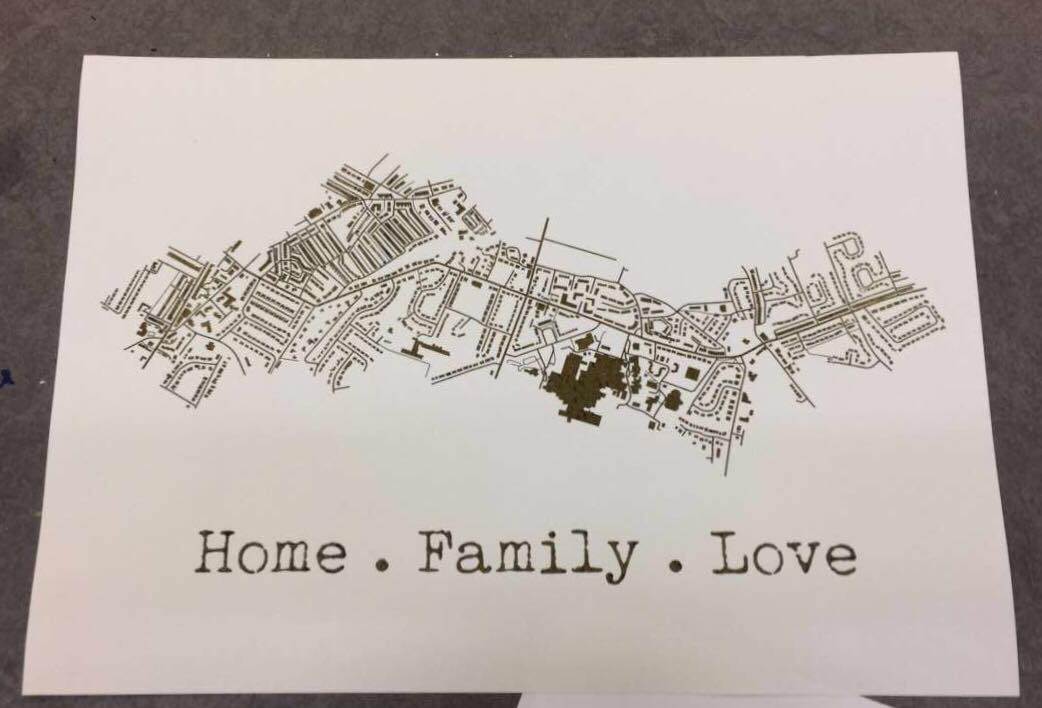
A while back, I had decided to make my mam a present which was based on a map of the areas where she has lived in her life. I had seen places online like ‘Not on the Highstreet’ doing this with a foiling effect, but instead of paying quite a bit of money for it, I decided I would just try to do it myself instead, using the facilities available to me within the college. At that time, I had no idea how I would go about making this effect, so I had gone to see Steph within the print room for her advice. She had suggested a technique where you would just print out the line work using a normal printer, then the foil would stick to it when under the heat press. So, after creating my line work, I printed it out onto a sheet of good paper with the normal printer in her room, I cut a sheet of foil which was big enough to cover the area of the design, then again, sandwiched the page and foil between sheets of scrap paper and placed it into the heat press for 30-60 seconds. Once done, I removed the foil and it had stuck down to the areas that were black in my design.

51424072_292910317950644_7496476359850459136_n

My opinion.

Although using the normal printer was a lot more efficient on time, and was a lot less messy as you didn’t have to worry about glue and cleaning screens etc, it did give a more subtle effect, as the foil appeared to be more crackled as opposed to full like I had achieved with the screen printing method. Overall I did have good experience with both techniques, however, if I were to use it again within my work, these would be factors that I have to consider, would I want the effect to be more subtle and still be able to make out the black line work underneath, or would I want the effect to be more solid?

All images are my own unless stated otherwise. Appologies that they may not best show the reflective qualities of the foil, I was going to upload a video, however this site thought otherwise. 

Screen Printing Class

When going into this class, I had did not have high hopes for it as the previous time that I had learnt the process, the outcomes did not come out the best, and the actual screen would fall apart after a couple of prints. However, in this class, we learnt a new process for making our screens, which did work a lot quicker and easier, and the screen actually lasted longer and gave better quality prints.

In the previous year, with our illustrations, we had to make them digitally and set them up within illustrator so that the image would be formed up of paths, but would be together in a compound shape. This was so that the design could run through the vinyl cutter, and it would recognise the paths and cut where needed. Once printed, you would then have to sit and weed out the sections of your design that you would want to be printed. I did actually enjoy this process, however, for time purposes, it wasn’t the best. When you had all the colour sections removed, you would then have to apply the vinyl to your screen by hand, which would often take two people to do as the screen was so big, and you would have to be meticulous with the process, making sure that there would be no air bubbles between the screen and vinyl, as this would potentially lead to your design bleeding when inked. Once the process of making your screen was complete, you would then place the screen facing down onto your paper but would have to use heavy weights or another person to hold the screen in place so that it wouldn’t move and potentially resulting in a bleed or smudge of your design. By working with another person, this also made it more awkward when pulling the ink down over the design, as it wasn’t just a smooth pull down, you would have to move around the arms that were holding your screen down. After all this effort, the screen would only last a couple of prints, at least in my own experience, as the ink would loosen the adhesive of the vinyl, which lead to some of my details falling off. Shown below are my results from this experience, which I hope show why I did not enjoy this experience and was not looking forward to trying it again.

HOWEVER, when beginning and learning this new process, it was SO much easier! When initially making the design, although I still had to make a monochrome design, as shown in my previous blog post, click here to see, I did not have to faff around with illustrator files, paths and compound shapes, I just needed to save my design as an A4 Jpeg.

When it came to creating the screen, we were all given frames which would be our own for the year. This would mean that we could repeat this process whenever we needed, as in previous years they have had a limited amount of screens, which could get damaged or take a while to dry after cleaning, so this would eliminate those issues, and if ours went missing, it would be of our own doing. With this frame, we were given a sheet of instructions to follow. Starting with it positioned so that there were two holes on the right and one in the top left corner, using double-sided tape, you’d then line all four sides. We were then given a sheet of mesh, which we stuck down onto the tape, making sure it was the rougher side facing upwards. This sheet acts as our screen and would be replaced from print to print. Using green tape, we then lined each side of the fame once again. This would ensure that the screen would not move during the process. With a craft knife and a cutting matt, we then carefully cut out the holes, the two on the right and one in the top left corner. Our screen was then ready for the design to be printed onto.

Using a new machine which burns the design onto the mesh, you would slot your frame into it, using the holes, then it would feed through, burning your design into the screen as it goes. I believe you do need to use a specific program for this to work, but it seemed simple enough to upload your Jpeg image and have it work. A couple of the other students did have issues with this process as they found the printer would glitch halfway through, but we discovered that this was due to the screen not being stable through the feeding process, as it would sometimes fall when coming out on the opposite side.

Below are images from the process of creating the screen, apologies if some are unclear as to what is going on within them.


When it had come to printing the designs, as the frame and screen were a lot thinner and lighter than the ones used in the previous process, it was no longer a two-man job to hold it in place, a couple of weights would suffice, meaning that when squeegeeing the ink down the screen, the process was a lot smoother.

The printing medium we had used was one part paint in the colour you wanted, I chose black as it fits with the style of work that I wish to create for the project, then two parts of acrylic medium. I believe the medium helped thin down the paint, making it a lot easier to transfer through the screen.  With a squeegee, you then put some of this medium in a line at the top of the screen, which should be faced downward on your page, then at a 45̊ angle, you then pull it down across your design. If you put too much medium, the print may bleed, but if you put too less, you may miss some details of your design. After a few runs, it is suggested that you wash your screen so that it does not get clogged, but once it is dry, you can go back to printing again.

This was unlike the previous process because if you were done with that screen, you would have to remove all of the vinyl, wash the screen, then you would not be able to print with the design again unless you went through the whole process of making your screen from vinyl once again.

Below are images of my results from this class, which as you can see I did experience a few learning curbs, using too much ink, or using the screen whilst it was still wet after cleaning, but I did get a few nice prints, and overall this class did give me a better perspective on the technique and process, and I do believe I will be using it again in the future. Potentially for final prints, but also for creating sellable products, as I believe it could be used to make good quality limited edition prints, bags, t-shirts, etc.

All images are my own unless stated otherwise.

6 Techniques I Used To Create Monochrome Illustrations Digitally

This tutorial had originally sprouted from my tutor telling everyone to create a monochrome illustration, which would then be used for screenprinting on Friday. I will post a tutorial/guide/tips I learnt from that lesson, after my class on Friday. From my previous knowledge of screenprinting, I believe you have to create a black and white image that will act almost as a stencil, so that is what I have tried to keep in mind throughout this experimentation.

wardrobe.5
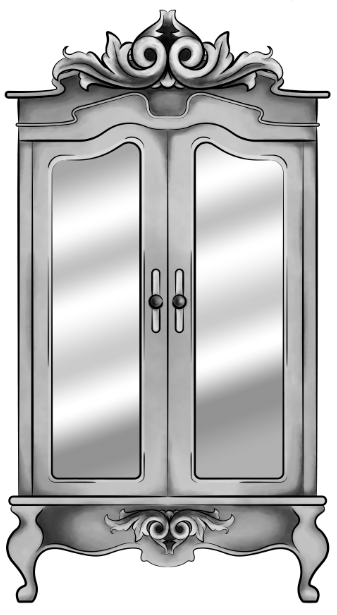
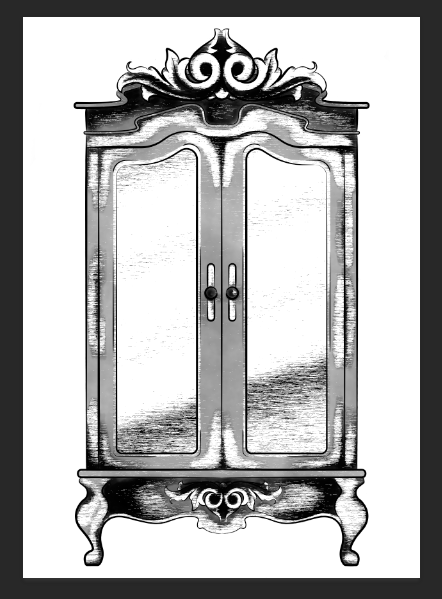
Original Digital Painting of the Wardrobe – No added filters.

Starting with a piece I had digitally painted (tutorial on digital painting possibly coming soon?), which is of the wardrobe for my ‘Lion, the Witch and the Wardrobe’ project. With all the colour layers, I had grouped them all together then duplicated the group, I then flattened the second group. This was so that if anything went wrong during this experimentation process/phase, I would still have my original layers within the first group. I decided to keep the linework separate from the painting as I wanted my linework to remain clean and readable, I did not want it to possibly become distorted with one of the effects I’m about to show you.

For these techniques, you will be playing around with the flattened layer of colour, using filters from the ‘pixelate’ section within Photoshop. If you do not like any of the effects on your work, it is easy to undo by just going to edit and undo.

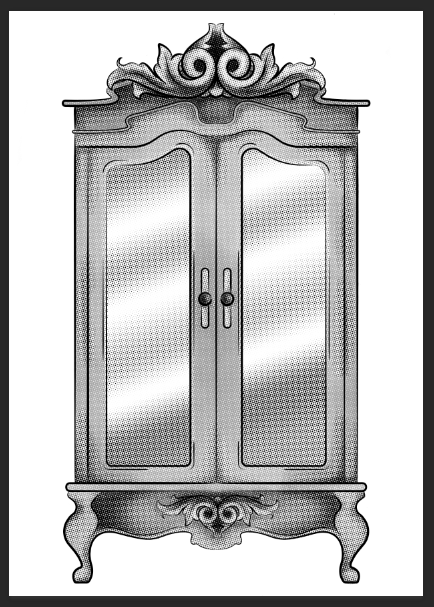
1.Colour Halftone

With this technique, it takes your image and pixelates it into rows of dots, which range from sizes, getting bigger in the deeper tones, and smaller in the lighter. You are able to change the size of these dots, making them finer or bigger, in the controls box that pops up before the change is made.

I personally liked this filter with a bigger scale of dots, as I feel when they are smaller, from a distance, the piece looks more square in the pattern, whereas when they’re bigger, it almost gives a pop art/comic type of effect.

test3 colourhalftone

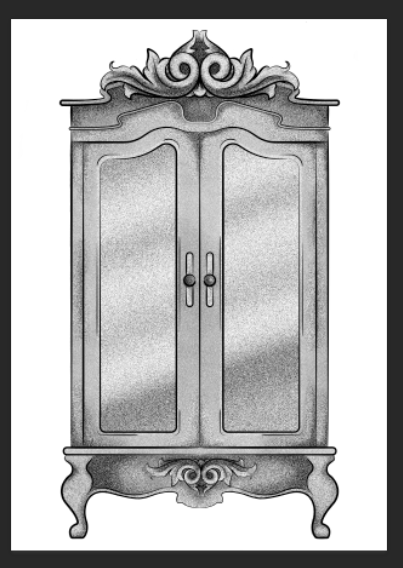
2.Mezzotint – Dots

For the mezzotint filter, there are three types in which you can try, one being dots, another being lines and another being strokes. Within these options, you can then chose whether you want the effect to be bolder or finer, etc.

As an example, with the piece below, I have used fine dots, and to me, it has made my design look more fuzzy, specifically in the darker areas, but you can see that it has almost a similar effect as adding noise.

test2 finedot

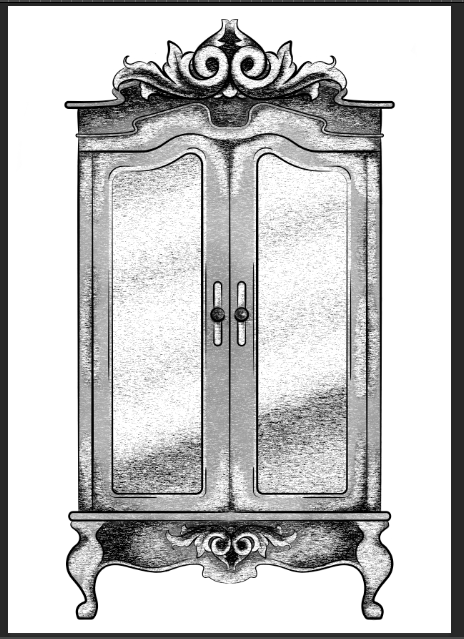
3.Mezzotint -Lines

This is one of the other mezzotint filters, the short lines. As you can see, it builds up the image using lines, they are closer together in the darker areas and further apart in the lighter, forming the contrast of the tonal piece

I don’t really enjoy the outcome of this filter as I feel it had made my piece look more patchy as opposed to blended. I feel I just prefer a neater approach with these filters, whereas this design looks more scratchy in a way.

test5 mezzoint shortlines

4.Mezzotint – Strokes

This filter is quite similar to the mezzotint lines, however, I feel there are more areas of flat colour, you only really see the lines where the tones are changing, for instance from black to dark grey, dark grey to light grey, then light grey to white.

Although this filter is less fuzzy than the previous, I still feel it is a bit patchy moving from tone to tone, so it is not the style that I wish to work with, as I would want it to be neater and more refined.

test1

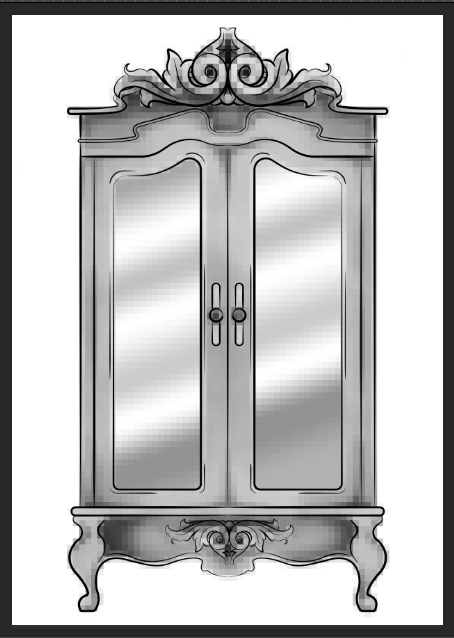
5.Mosaic

Moving away from the mezzotint filters, in the example below, I have shown the Mosaic filter. As you can see, this pixelates the shading, the effect almost reminds me of inappropriate blurring that you would see on tv when the show would blur out product placement, a persons face, a rude hand gesture, or any type of nudity.

Although this filter does give a softer shading, the blockiness is not really a route that I want to take with my designs, so again, I will not be using this filter during this project, but its good to know its there.

test6 mosaic

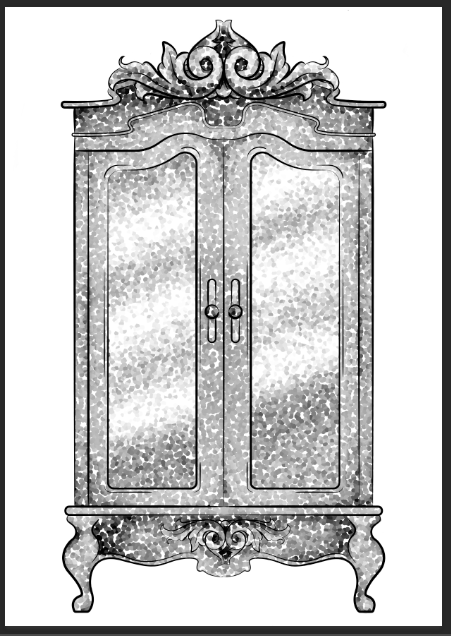
6.Pointillise

To me, this filter resembles monotone confetti being spilt over my design. I would like to see how this filter works with colour, as it could create some fun designs that I feel would appeal more to children, however it is not something I wish to use within my design.

I feel this filter would be similar to the halftone one, however, where the halftone works in rows of circles, this filter does not have a system, as there are circles overlapping each other, and I feel it works mostly on tones, as opposed to changing the sizes of the circles as I believe the halftone filter does.

test4 pointilise

Although I did not find a filter which had achieved the style that I desired, that being a crosshatch pattern, almost in the style of John Tenniel, as I need a design to use in the screenprinting class, I will choose the best of the results, for me this is the halftone filter, but I will expand the circle size a little, as I do not know how small the new printer for the screenprinting machine can go, and I do want my piece to be readable.


BONUS TIP 

7. Illustrator

When experimenting with the sizes of the circles within the halftone filter, I had formed 3 versions, the first I believe being 10, second I believe is 12 and the third is 14, then I had asked my tutor for advice in which would be most readable, and which would most likely print the best on a screen, in which he had responded the second. I did like the first as it had more of a subtle blend, however, I don’t believe the new printer would have picked up such small detail.

As the original version of this effect was picking up the other tones within this piece, such as the grey tones, I decided to save the image from Photoshop, then take it into Illustrator. In this program, I then ‘image traced’ the image, which had ended up taking away all of the other tones, and had just left me with the black line or dot work. I did this step, as the last time I had screen printed, I recall the design had to be stencil-like, meaning that it could only be one colour, so I did not feel the piece would work correctly if I had left all of the other tones in.